 Blog
Blog Podcast
 Soutien
 Connexion client
PayPal is retiring Website Payments Standard, the system behind MemberMouse’s original PayPal integration, in January 2027. MemberMouse 3.1.2 adds PayPal Checkout, which uses PayPal’s current REST APIs, and an Upgrade Wizard that moves your site over in eight steps.
The wizard only changes how nouveau purchases are taken. Members who already pay you through legacy PayPal keep billing on legacy PayPal, and MemberMouse never cancels or moves them for you.
Which MemberMouse versions this applies to
- Sites that use legacy PayPal sur MemberMouse 3.1.1 or earlier and are updating to 3.1.2 or later.
- New to PayPal on 3.1.2 or later, with no legacy PayPal? Use Configuring PayPal Checkout au lieu de cela.
Before you start
- Take a backup of your site’s files and database.
- You need a PayPal Entreprises account and access to the PayPal Developer Dashboard (developer.paypal.com), signed in with that Business account.
- Your site must be reachable over https on its public domain. PayPal will not send webhooks to an
http://address or to a local or staging address it cannot reach. - Allow about 15 minutes.
Step 1: Update MemberMouse to 3.1.2
Update MemberMouse as you normally would. If you update by uploading the zip file, go to Plugins > Add Plugin > Upload Plugin, choose membermouse.zip et cliquez sur Installer maintenant.
Step 2: Start the Upgrade Wizard
Go to the MemberMouse dashboard. Because legacy PayPal is active, MemberMouse shows an Upgrade to PayPal Checkout notice. Click Start Upgrade Wizard.

You can also open the wizard at any time from MemberMouse > Payment Settings > PayPal Upgrade.
The first screen lists the eight steps. Click Continuer.
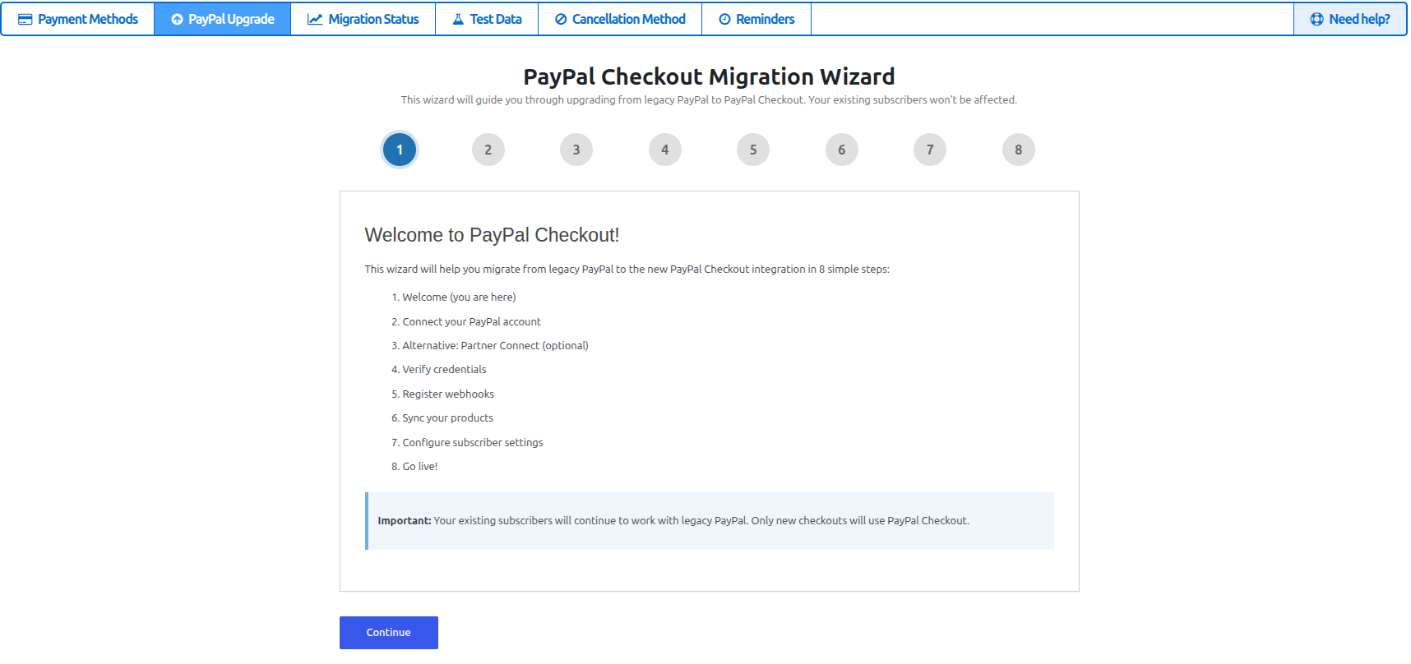
The wizard saves your progress, so you can leave and come back to the step you were on.
Step 3: Get your REST API credentials from PayPal
PayPal Checkout connects with a Identifiant du client et Secret from a REST app in your PayPal Developer Dashboard. These are not the API Username, Password and Signature that legacy PayPal used.
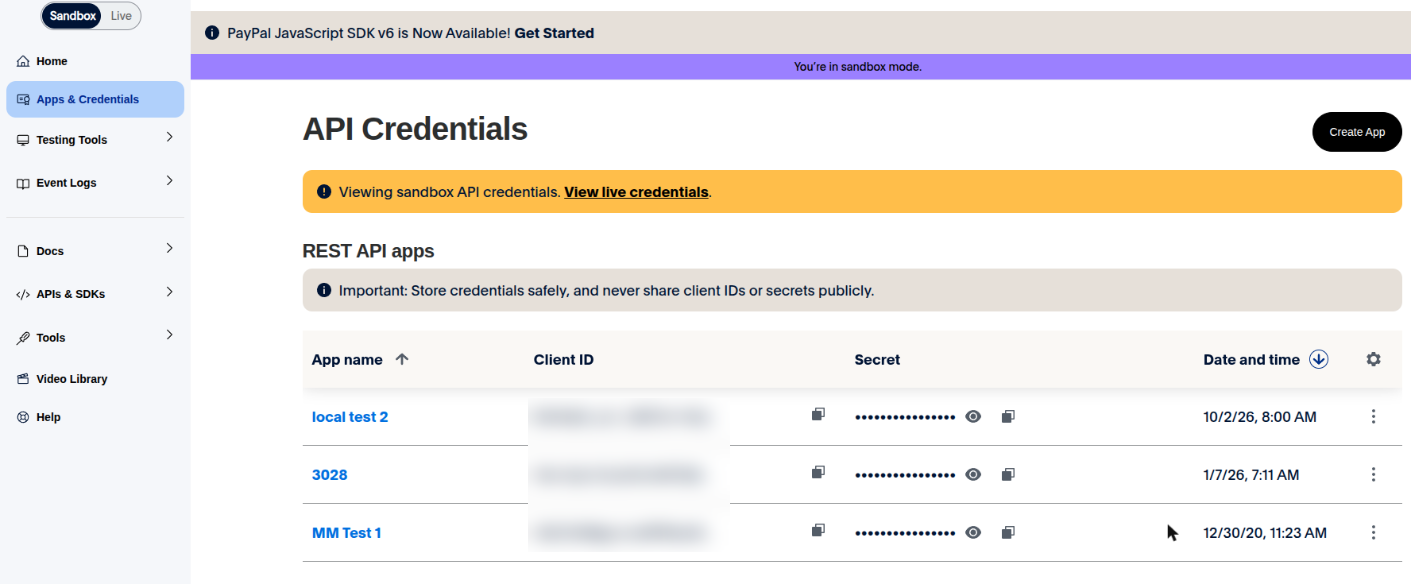
- Sign in at developer.paypal.com and open Apps & Credentials.
- Utiliser le Sandbox / Live switch at the top left to choose the environment. Use Live for your real store and Sandbox only for testing.
- Cliquez sur Create App, or open an app you already use for this site.
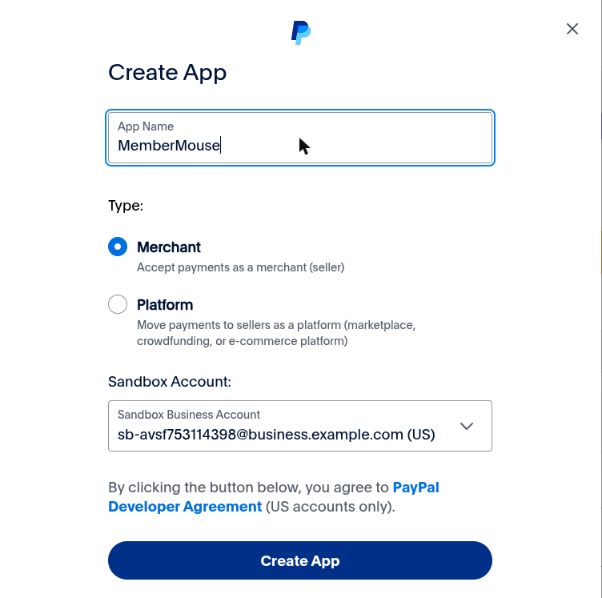
- If you are creating an app, give it a name (for example, your site’s name), leave Type set to Merchantet cliquez sur Create App.
- On the app’s page, copy the Identifiant du client. Click the eye icon next to Secret key 1 to show it, then copy it.
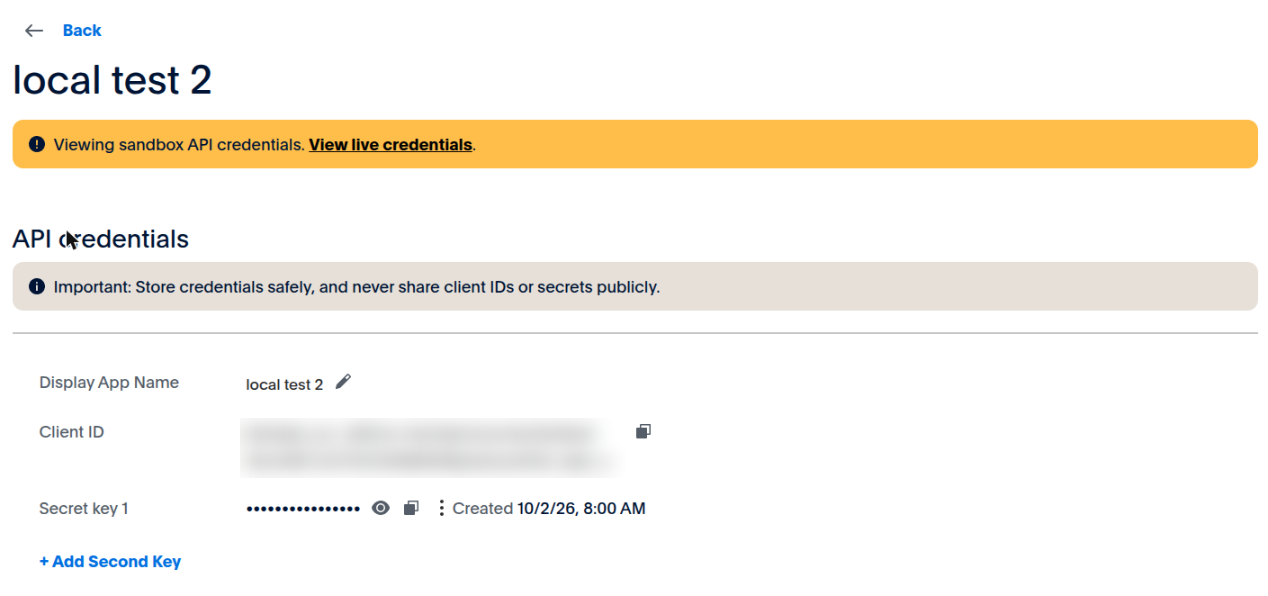
Keep these private. Anyone with your Client ID and Secret can act on your PayPal account. Use a separate REST app for each website, including staging copies.
Step 4: Connect your PayPal account (wizard step 2)
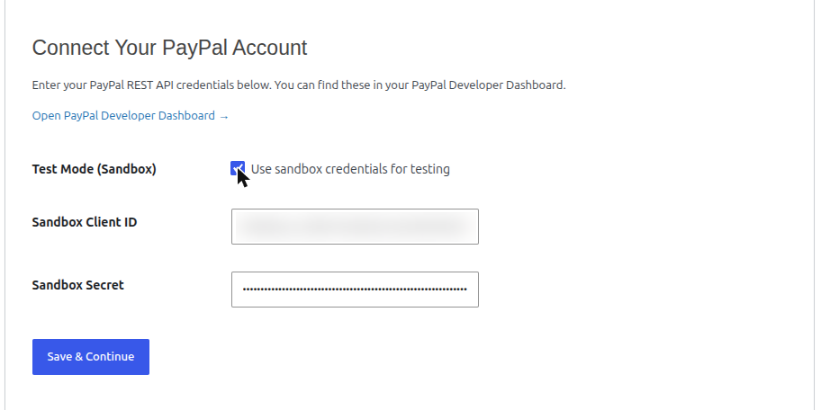
Paste the Identifiant du client et Secret into the wizard.
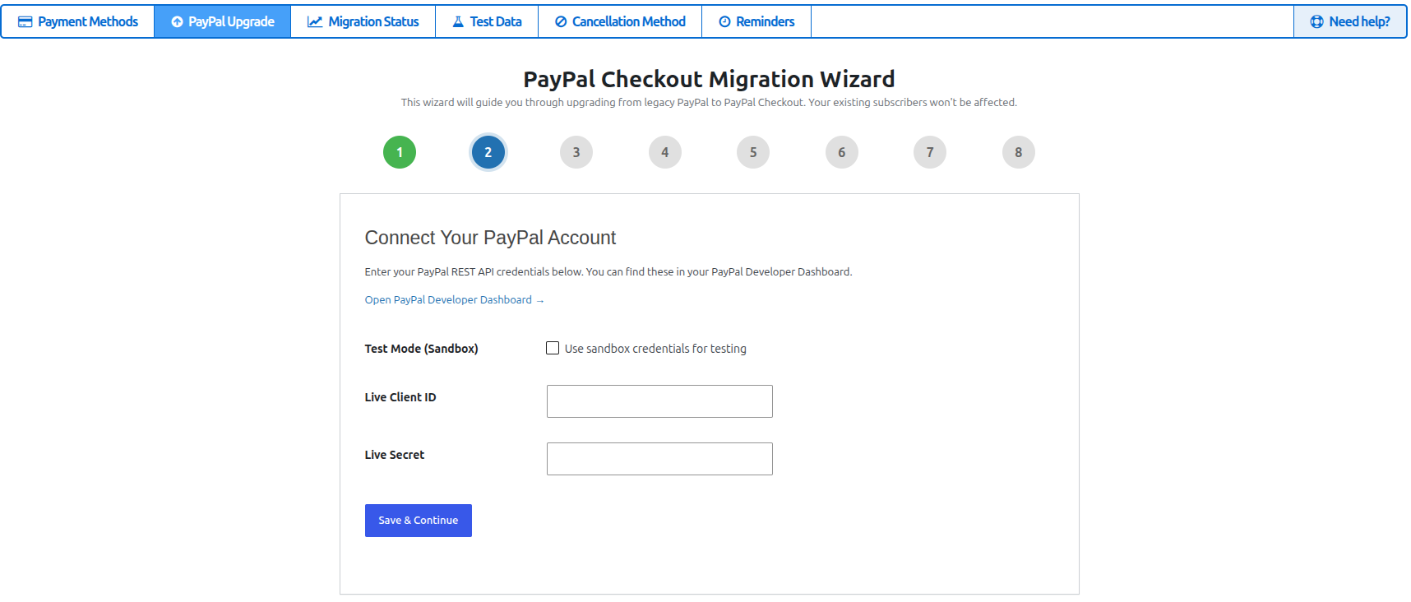
If you are testing with sandbox credentials, tick Use sandbox credentials for testing first. The fields change to Sandbox Client ID et Sandbox Secret.
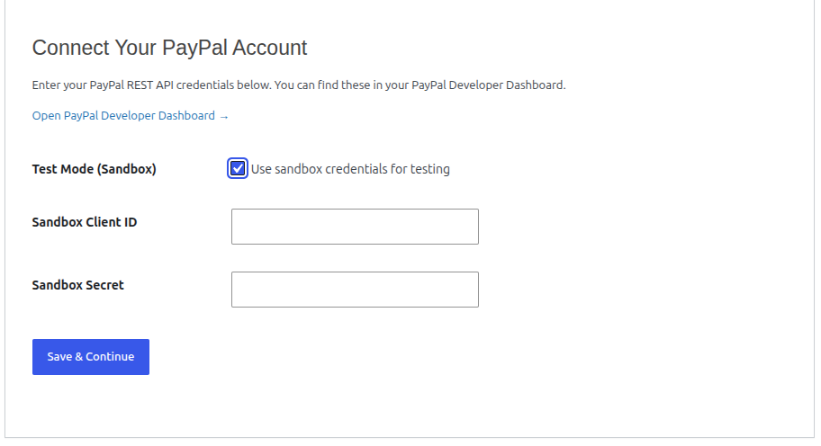
Cliquez sur Save & Continue.
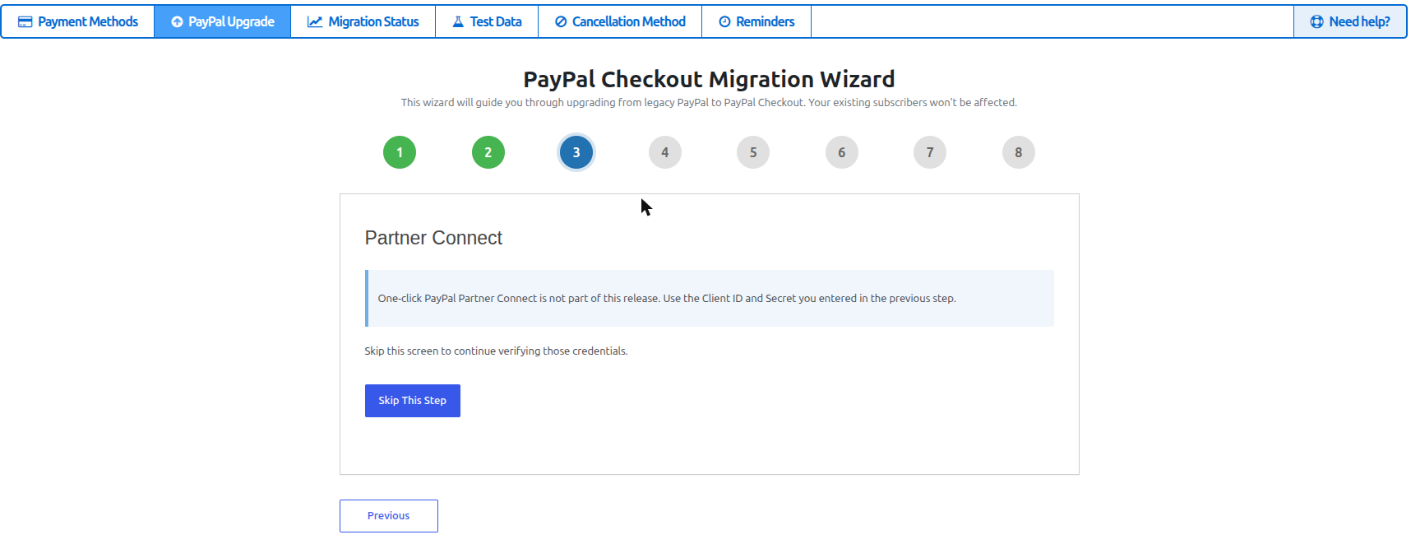
Step 5: Skip Partner Connect (wizard step 3)
One-click Partner Connect is not part of this release. Click Skip This Step.
Step 6: Verify your credentials (wizard step 4)
Cliquez sur Verify Credentials. MemberMouse asks PayPal for an access token with the Client ID and Secret you entered. If they are valid, the wizard moves on to step 5. If not, go back to step 2 and check that you copied both values from the same app and the same environment (Live or Sandbox).
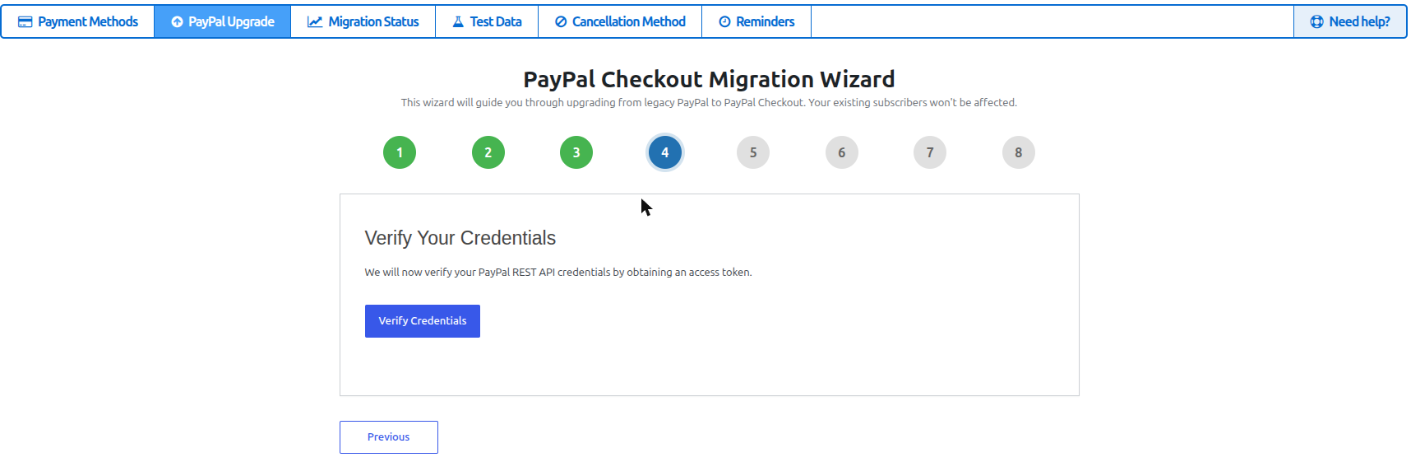
Step 7: Register webhooks (wizard step 5)
Webhooks are how PayPal tells MemberMouse about payments, renewals, refunds and cancellations. The wizard shows your site’s webhook URL and registers it with PayPal for you. Click Register Webhooks.
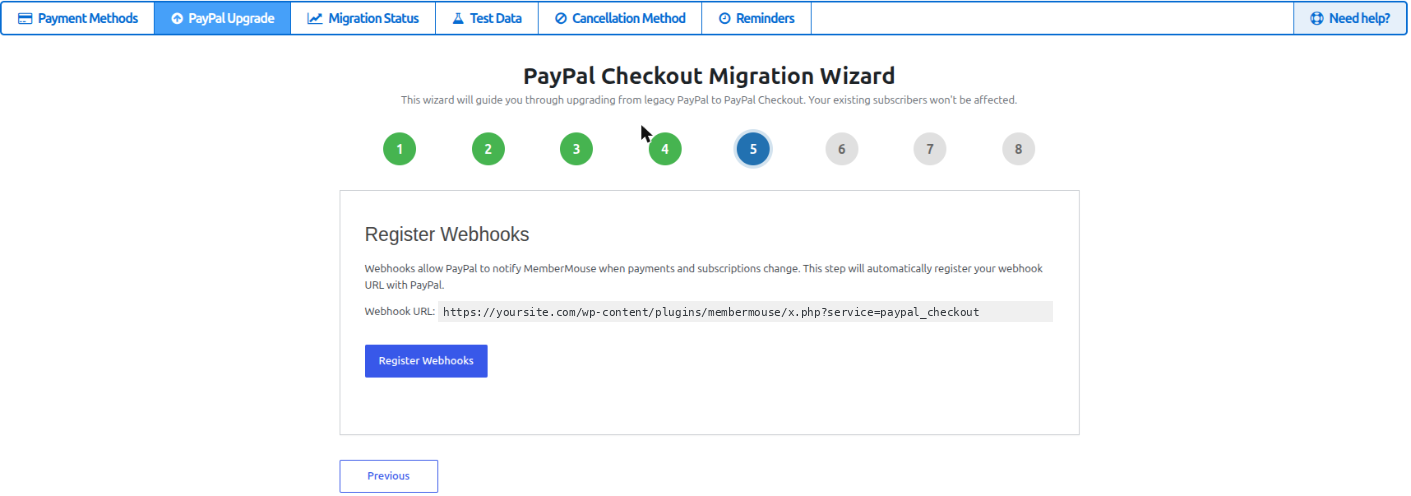
Check that the Webhook URL starts with https:// and uses your live domain. If it shows http://, fix your WordPress Address and Site Address under Réglages > Général before you continue. PayPal will not deliver webhooks to that address, and the wizard cannot go live without a registered webhook.
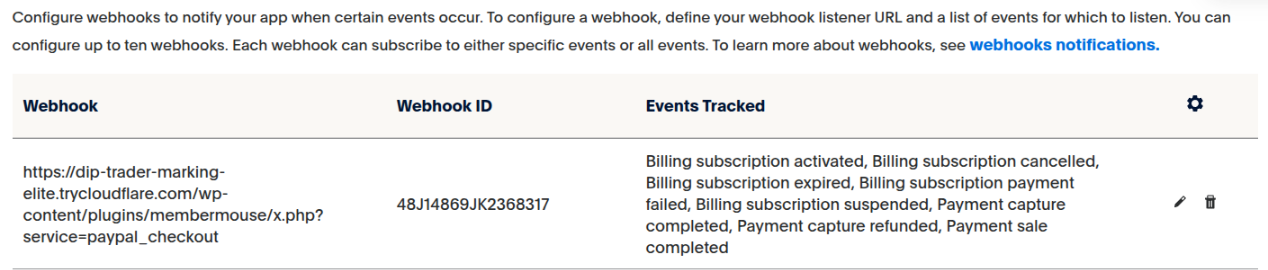
After this step you can see the webhook in your PayPal app, under Crochets Web, with the eight events MemberMouse uses:
Step 8: Sync your products (wizard step 6)
PayPal Checkout needs a PayPal billing plan for each recurring product. Click Check Products (Dry Run) to see which products will be synced without changing anything.
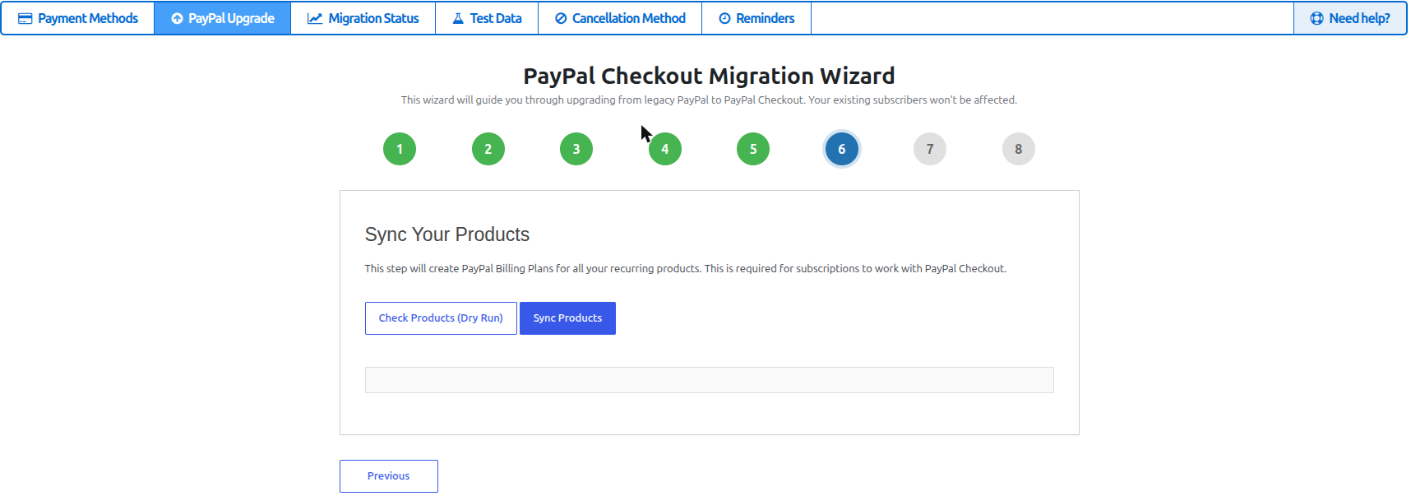
Only recurring products appear. One-time products do not need a billing plan and are left out.
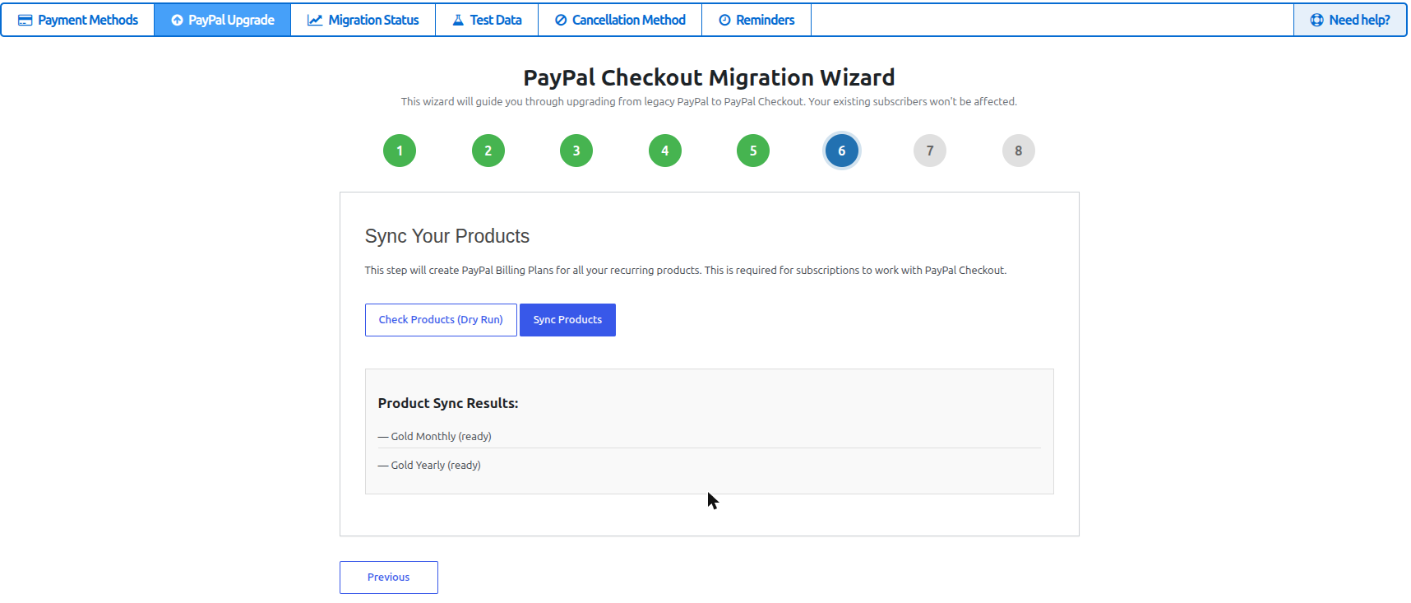
Cliquez sur Sync Products. MemberMouse creates the plans in PayPal and moves to step 7 when it is done.
Step 9: Existing subscribers (wizard step 7)
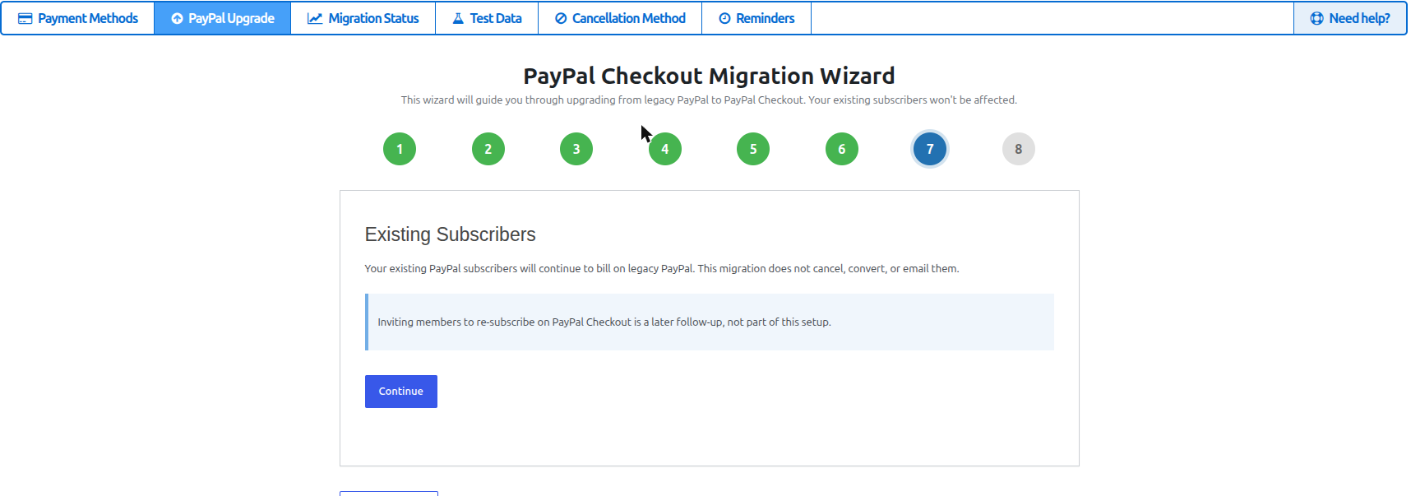
This step is information only. Your existing legacy PayPal subscribers keep billing on legacy PayPal. The migration does not cancel them, convert them or email them. Click Continuer.
Step 10: Activate PayPal Checkout (wizard step 8)
The last step confirms what is configured. Click Finish — Activate Checkout.
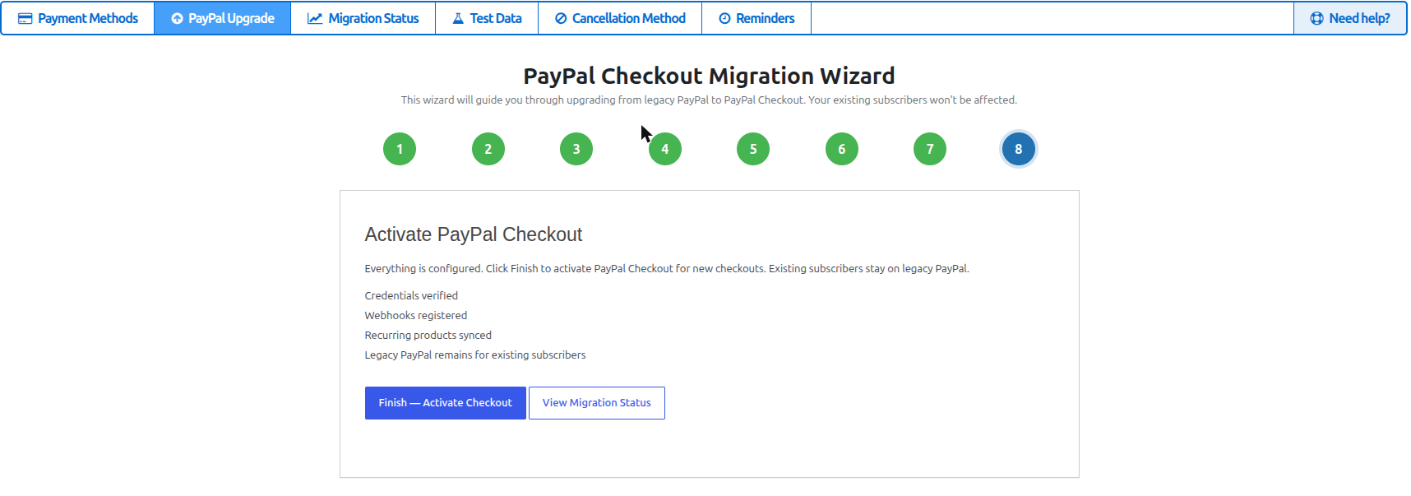
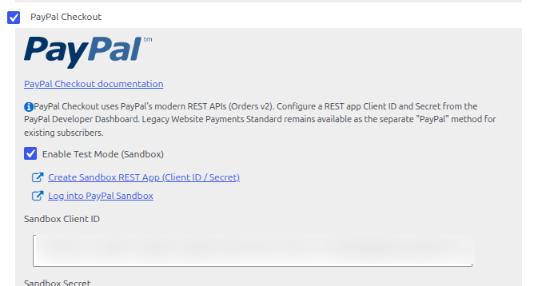
PayPal Checkout is now switched on for new purchases. Under Paramètres de paiement > Méthodes de paiement you will see PayPal Checkout ticked below the legacy PayPal method. The wizard leaves legacy PayPal ticked.
After the migration: the Migration Status page
Aller à Payment Settings > Migration Status to see how many active subscriptions are on each system.
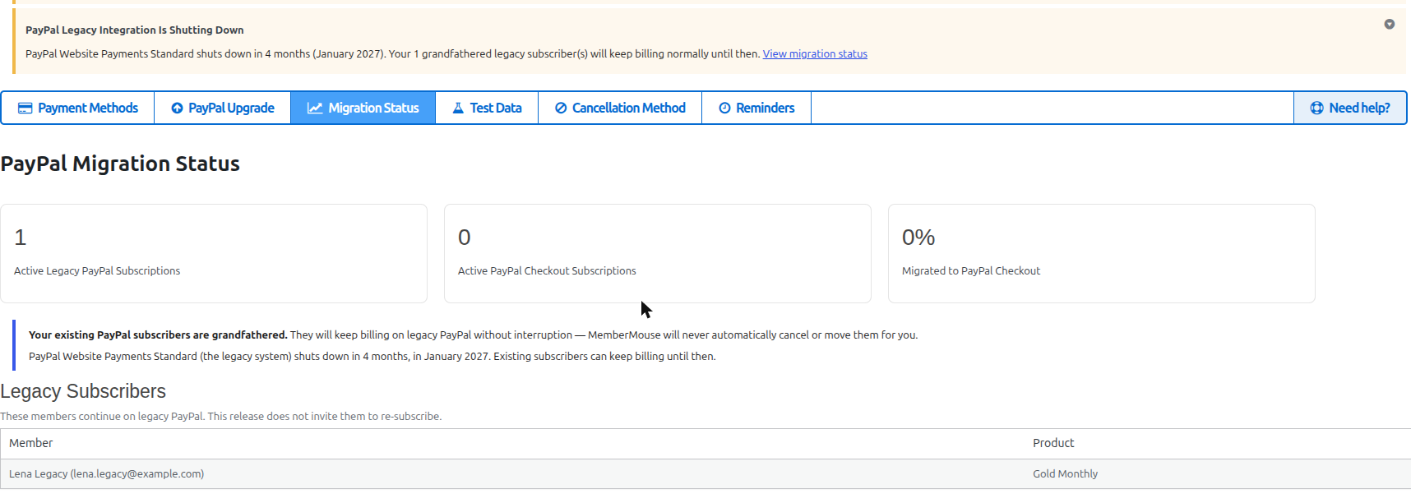
- Active Legacy PayPal Subscriptions: members still billing through legacy PayPal. They are listed under Legacy Subscribers.
- Active PayPal Checkout Subscriptions: subscriptions taken through PayPal Checkout.
- Migrated to PayPal Checkout: the PayPal Checkout figure as a percentage of all active PayPal subscriptions. New PayPal Checkout customers count toward it, so it rises as you take new sales even if no legacy member has switched.

Once the wizard is finished, the dashboard notice changes to PayPal Legacy Integration Is Shutting Down, with a count of your grandfathered legacy subscribers and a link to this page.
Check your checkout page
With both methods active, the default checkout button SmartTag ([MM_Form_Button type='all' ...]) shows deux “Checkout using PayPal” buttons that look the same. The first is legacy PayPal and the second is PayPal Checkout.
To offer only PayPal Checkout to new buyers, replace the default button SmartTag on your checkout page with a button for PayPal Checkout alone:
<a href="/fr/[MM_Form_Button type='submit' paymentMethod='paypal_checkout']/">Payer avec PayPal</a>If you also accept cards through an onsite payment method such as Stripe, keep a submit button for that method as well.
Make a test purchase with the PayPal Checkout button. The buyer sees a short MemberMouse page with PayPal’s buttons, approves the payment in a PayPal window, and is returned to your confirmation page automatically.

 FR
FR  EN
EN  ES
ES  DE
DE  PT
PT 


