 Blog
Blog Podcast
 Unterstützung
 Kunden-Login
Which MemberMouse versions this applies to
- MemberMouse 3.1.2 and later: follow this article to set up PayPal Checkout.
- MemberMouse 3.1.1 and earlier: PayPal Checkout is not available. Update MemberMouse first, or see Configuring Legacy PayPal (Website Payments Standard).
- Already using legacy PayPal? Don’t follow this article. Use Migrating from Legacy PayPal to PayPal Checkout instead; its wizard registers your webhook and syncs your products for you.
PayPal Checkout is the PayPal payment method added in MemberMouse 3.1.2. It uses PayPal’s REST APIs, takes one-time payments and subscriptions, and returns buyers to your confirmation page automatically. It replaces the original PayPal method (Website Payments Standard), which PayPal retires in January 2027.
Before you start
- A PayPal Business account, signed in at developer.paypal.com.
- Your site on its live domain over https. PayPal will not send webhooks to an
http://address. - MemberMouse 3.1.2 or later.
Step 1: Install or update MemberMouse
Gehe zu Plugins > Add Plugin > Upload Plugin, choose membermouse.zip, click Jetzt installierendann Plugin aktivieren.
Step 2: Turn on PayPal Checkout
Gehe zu MemberMouse > Payment Settings > Payment Methods. Under Offsite-Zahlungsmethoden, tick PayPal Checkout. Do not tick PayPal: that is the legacy method.
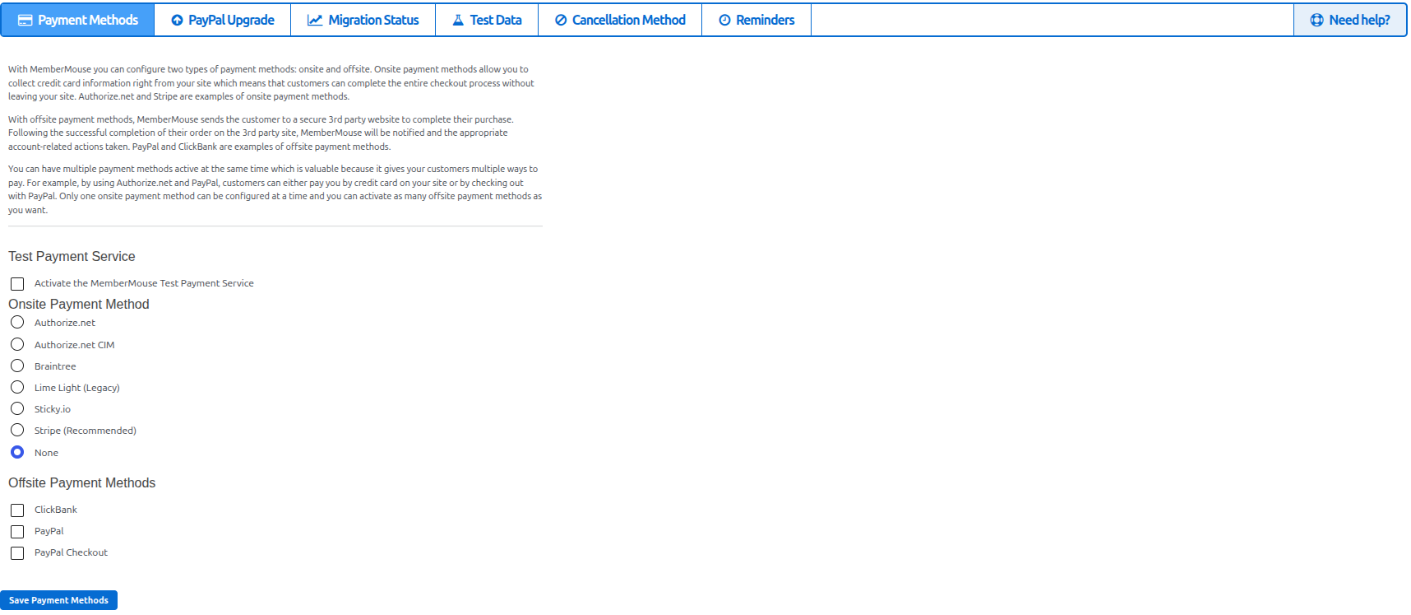
The PayPal Checkout settings open below it:
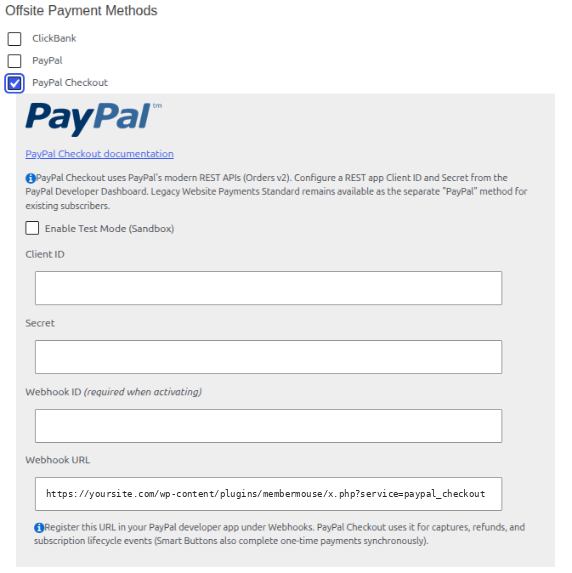
- Kunden-ID und Secret: from your REST app (Step 3).
- Webhook ID (required when activating): from the webhook you add in Step 4.
- Webhook URL: your site’s address for PayPal webhooks. Copy this for Step 4.
To test first, tick Enable Test Mode (Sandbox). The fields change to Sandbox Client ID, Sandbox Secret und Sandbox Webhook ID, and two links appear: Create Sandbox REST App (Client ID / Secret) und Log into PayPal Sandbox.
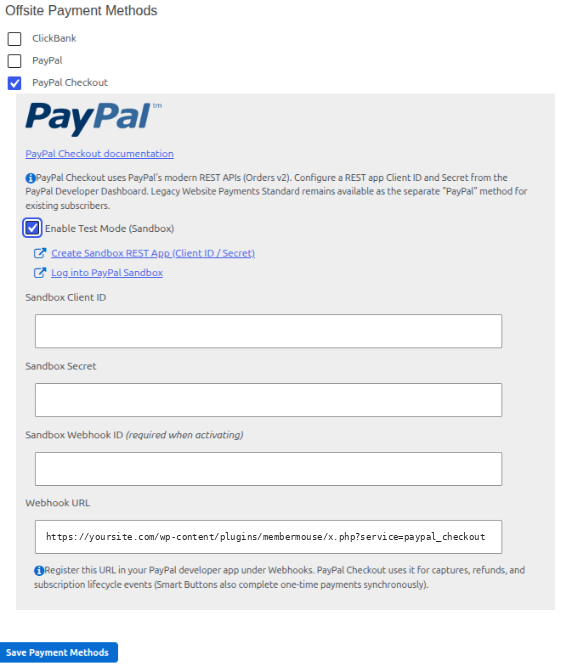
Leave this page open in its own tab.
Step 3: Get your Client ID and Secret
- Sign in at developer.paypal.com and open Apps & Credentials.
- Verwenden Sie die Sandbox / Live switch at the top left to choose the environment.
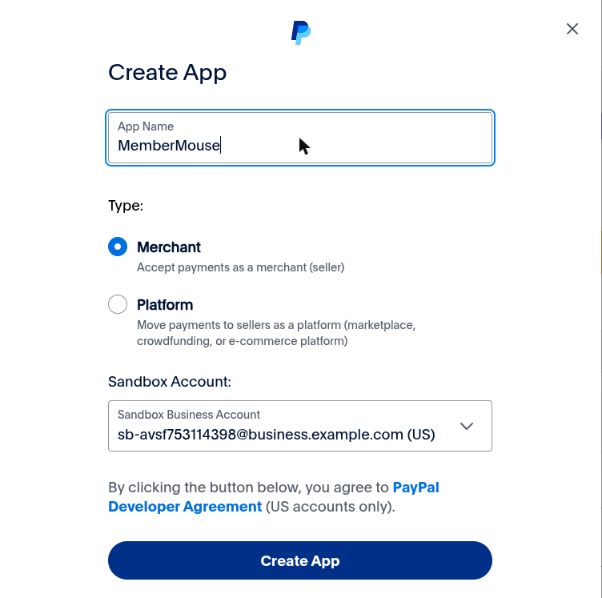
- Klicken Sie auf Create App, give it a name, leave Typ set to Merchantund klicken Sie auf Create App.
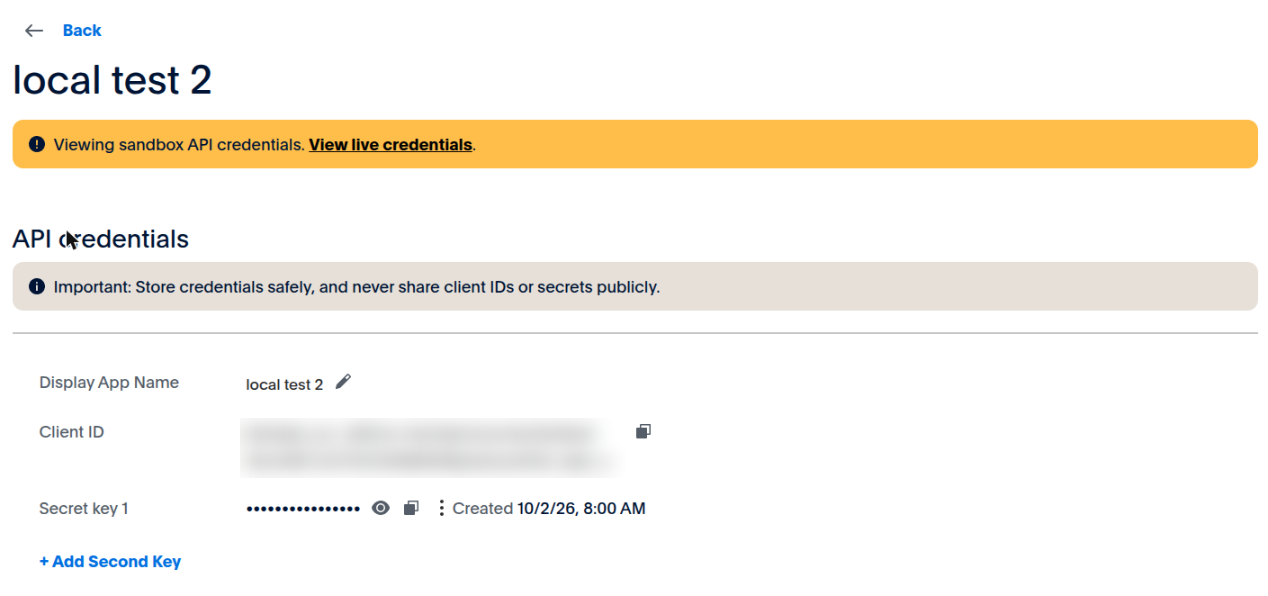
- On the app’s page, copy the Kunden-ID, and click the eye icon next to Secret key 1 to show and copy the Secret.
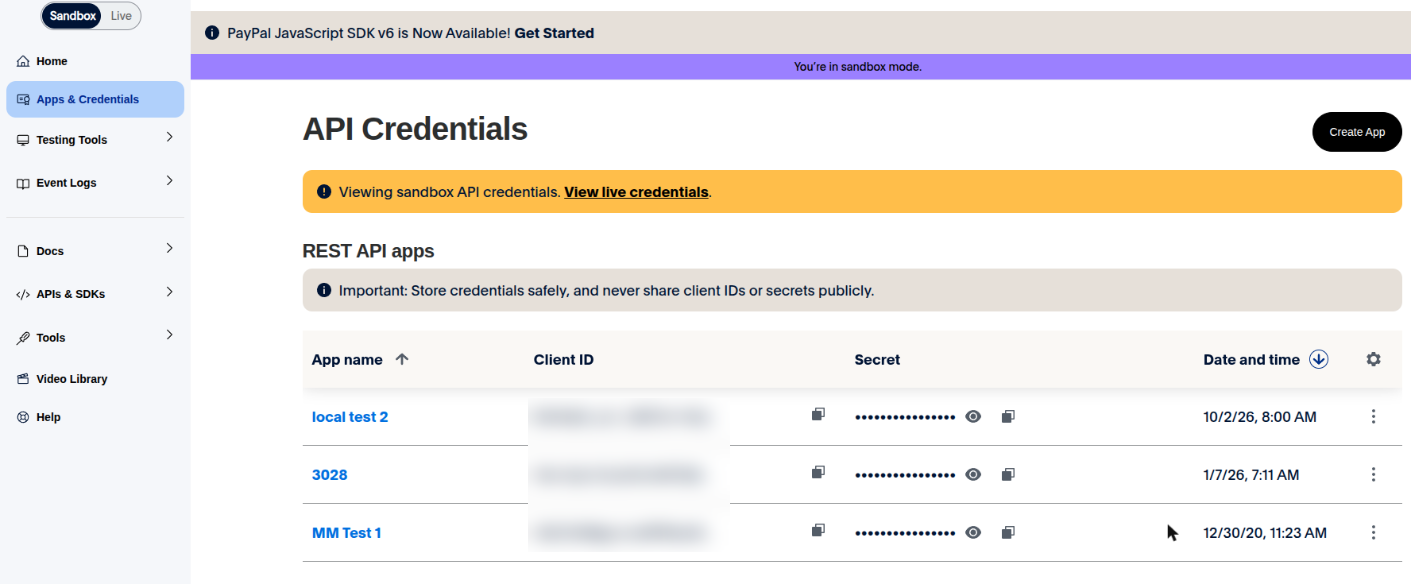
Use a separate REST app for each website, including staging copies.
Step 4: Add a webhook in PayPal
- On the same app’s page, scroll to Sandbox Webhooks (or Live Webhooks) and click Add Webhook.
- Unter Webhook URL, paste the Webhook URL from MemberMouse. It must start with
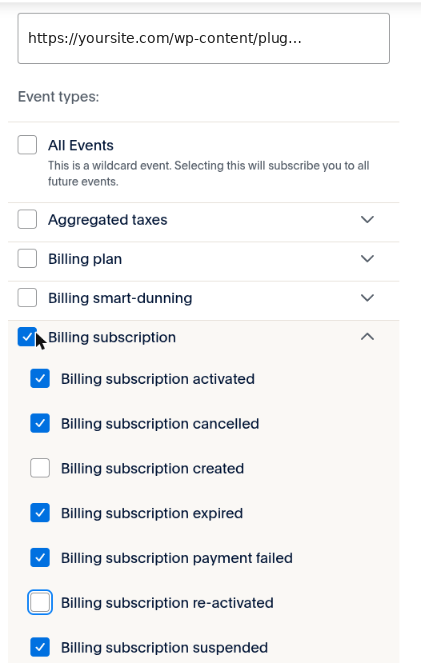
https://. - Unter Event types, expand Billing subscription and tick:
- Billing subscription activated
- Billing subscription cancelled
- Billing subscription expired
- Billing subscription payment failed
- Billing subscription suspended
- Expand Payments & Payouts and tick:
- Payment capture completed
- Payment capture refunded
- Payment sale completed
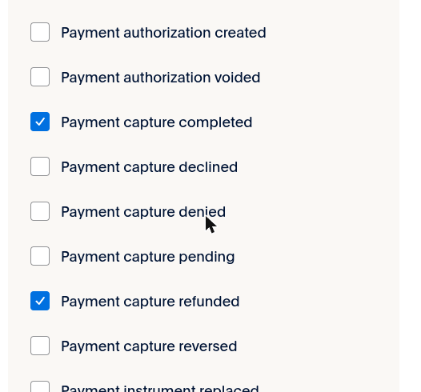
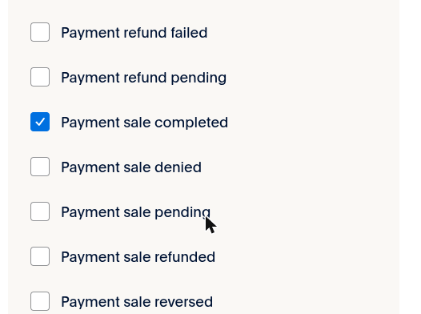
Do not tick All Events. MemberMouse only uses these eight.
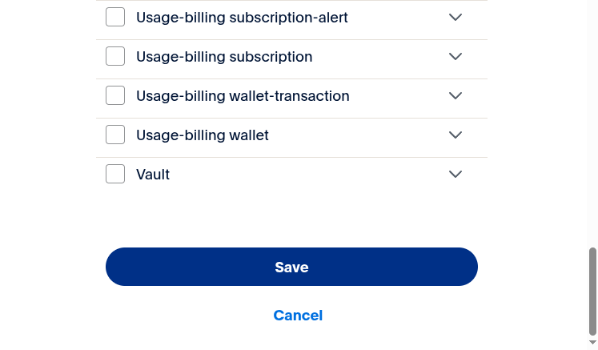
- Klicken Sie auf Speichern Sie. PayPal shows Webhook added successfully and lists the webhook with its Webhook ID. Copy the ID.

Step 5: Enter your details in MemberMouse and save
Back in MemberMouse, paste the Kunden-ID, Secret und Webhook ID (or Sandbox Client ID, Sandbox Secret und Sandbox Webhook ID in test mode), then click Zahlungsarten speichern.
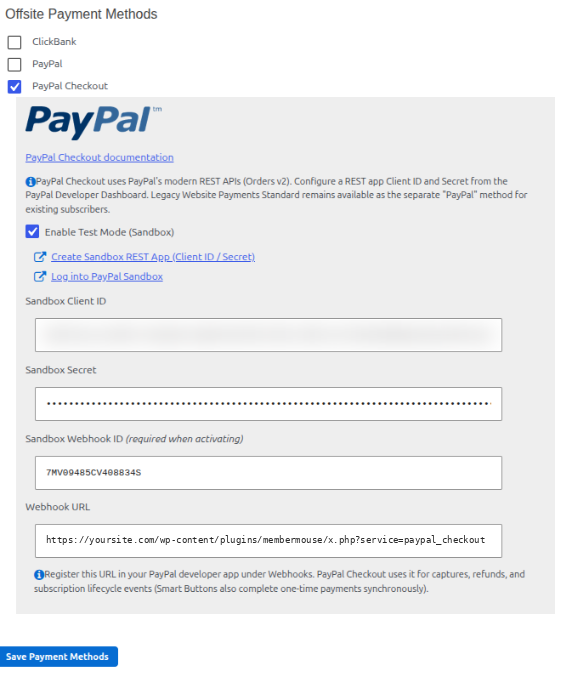
You should see Payment method settings saved successfully.
Recurring products
There is nothing to do here. Subscriptions through PayPal Checkout use a PayPal billing plan for each recurring product. MemberMouse creates the plan when you save a recurring product, and at checkout if a product does not have one yet. If you change a recurring product’s price or billing period, MemberMouse creates a new plan for new subscribers.
Step 6: Make a test purchase
- Open a purchase link or your checkout page while logged out.
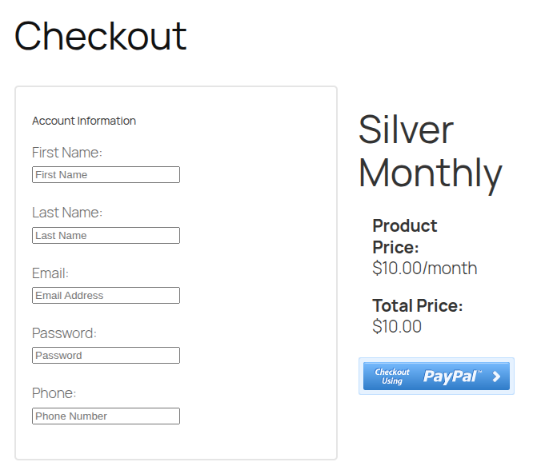
- Fill in the form and click Checkout using PayPal.
- MemberMouse shows a short page with PayPal’s buttons: PayPal, PayPal Credit und Debit or Credit Card (Abonnieren versions for recurring products). Click one and complete the payment in the PayPal window.

- The buyer returns to your confirmation page automatically.

- Unter MemberMouse > Manage Members, the new member is Aktiv.
- In the PayPal Developer Dashboard, Event Logs > Webhook Events (choose your app) lists the Billing subscription activated und Payment sale completed events for the purchase.
With only PayPal Checkout active, the checkout shows a single PayPal button:
Going live
Untick Enable Test Mode (Sandbox), enter your Live Client ID, Secret and Webhook ID (a Live app has its own webhook, which you add the same way with the Sandbox/Live switch on Live), and save. Make one low-value live purchase and refund it from PayPal to confirm.

 DE
DE  EN
EN  ES
ES  FR
FR  PT
PT 


