 Blog
Blog Podcast
 Soutien
 Connexion client
Qu'est-ce qu'un champ personnalisé ?
Si vous souhaitez collecter et stocker des informations supplémentaires concernant vos clients, vous pouvez ajouter des champs personnalisés. For example, if you’re running a weight loss program, you may want to collect a customer’s current and target weight.
When members enter their information into custom fields it will optionally show up on the member’s My Account page and in the member details area which you can access from the Gérer les membres écran. Lisez cet article pour learn more about viewing a member’s details.
Gestion des champs personnalisés
Dans le cadre de la Souris du membre aller dans le menu Paramètres de paiement puis cliquez sur le bouton Champs personnalisés Onglet. Vous pourrez y voir rapidement les détails associés à chaque champ personnalisé que vous avez créé. Consultez l'onglet Colonnes des champs personnalisés ci-dessous pour en savoir plus.
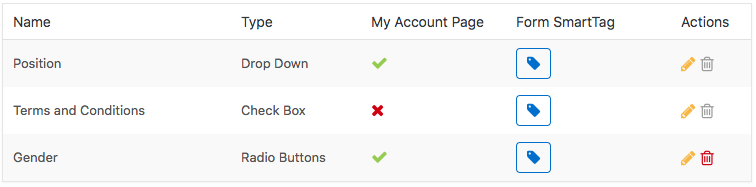
Colonnes des champs personnalisés
| COLONNE | DESCRIPTION |
| Nom | Il s'agit du nom du champ personnalisé. |
| Type | Il s'agit du type de champ personnalisé. Les valeurs possibles sont Case à cocher, liste déroulante, texte long, boutons radio et Texte court. |
| Page Mon compte | The ‘green check’ icon indicates that this field will be displayed on the member’s Mon compte page where they’ll be able to edit it at any time. |
| Formulaire SmartTag | Clicking the ‘blue tag’ button will pop up a dialog where you can copy a SmartTag to insert in a Checkout form or Custom form in order to collect custom field data. |
| Actions | Les icônes situées sous cette colonne vous permettent de modifier ou de supprimer un champ personnalisé. Modifier - Cliquez sur ce bouton pour modifier le champ personnalisé. Lire cet article pour en savoir plus sur la modification des champs personnalisés. Delete – Click this to delete the custom field. If the ‘grey trashcan’ icon is displayed this means that the custom field cannot be deleted. Read this article to en savoir plus sur la suppression des champs personnalisés. |

 FR
FR  EN
EN  ES
ES  DE
DE  PT
PT 


