 Blog
Blog Podcast
 Support
 Customer Login
The PayPal IPN Log records notifications from legacy PayPal (Website Payments Standard) only. Members who bought through PayPal Checkout (MemberMouse 3.1.2 and later) do not appear here, because PayPal Checkout uses webhooks rather than IPNs. To check PayPal Checkout webhooks, use Event Logs in your PayPal Developer Dashboard (see below).
The PayPal IPN Log allows you to monitor communication between the MemberMouse plugin on your site and PayPal. To view the log:
- Go to MemberMouse > Logs
- Click the tab that says “PayPal IPN Log”
OR
- Go to MemberMouse > Payment Settings
- Under the PayPal settings, Click the button that says View PayPal IPN Log
The IPN log shows successful transactions as well as payment issues (such as a card being declined). You can also see specific details related to each specific IPN. Below, you can see the different columns found in the log, along with a description of what you can expect to find under each column:
| Column Label | Description |
| Member | This is the affected member’s email address. If you click on it, it will take you to the Member Details area in MemberMouse for that member. |
| Order # | This is the associated Order # in MemberMouse. If you click on it, it will take you to the Member Details area in MemberMouse for that member. |
| Transaction ID | In this section, you can see the specific PayPal Transaction ID number for each IPN. |
| Transaction Type | This field shows what type of transaction this IPN is referencing. You will see items listed here that show the specific type, such as: Sign ups, Payments, and Cancellations. |
| Payment Status | This column shows the status sent along with the IPN. You can also view this status in the IPN Details window that comes up when clicking “View IPN Details.” |
| IPN Details | When you select the link for “View IPN Details,” a popup window will show and display more detailed information about the specifics conveyed during communication between PayPal and MemberMouse. |
| Date | This is the date and time at which the event occurred. |
Checking PayPal Checkout Webhooks
MemberMouse 3.1.2 does not have a log screen for PayPal Checkout webhooks. To see whether PayPal sent a webhook and whether your site accepted it:
- Sign in at developer.paypal.com.
- Choose Sandbox or Live to match your site.
- Open Event Logs > Webhook Events, choose your app under Application, and click Search.
- Find the event by date or type, for example
PAYMENT.SALE.COMPLETEDfor a renewal orBILLING.SUBSCRIPTION.CANCELLEDfor a cancellation, and check its delivery status.
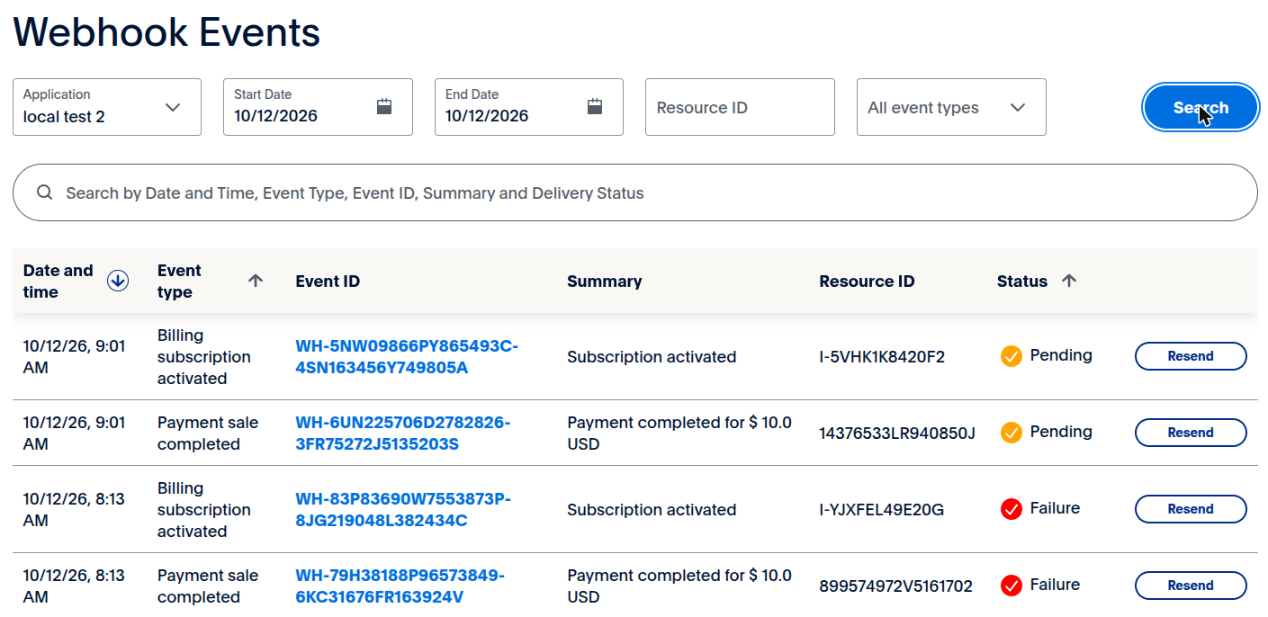
An event can show Failure or Pending even when your site received it. In our testing this happened when the same PayPal app also had a webhook for a site that was offline.

 EN
EN  ES
ES  DE
DE  FR
FR  PT
PT 


